

Support, FAQs & Compatibility
Got Questions? We've Got Answers.


Alarm.com Compatible Alarm Systems
Below is a list of supported security systems, including default installer codes and instructions for locating your panel's IMEI. We support a wide range of alarm systems from manufacturers such as Qolsys, DSC, 2GIG, Interlogix, and Alarm.com. Most security systems are compatible with our monitoring services provided they are not currently registered to another Alarm.com account.
If you're unsure whether your system is compatible, review the supported panels below or visit Alarm.com's device directory for additional hardware information.

2GIG Edge
See More
1. Tap System Settings.
2. Enter the installer code or master code.
3. Tap System Tests.
4. Tap Cell Radio Test & Status.
5. The IMEI will be listed as the serial number.
Installer code: 1561
Master Code: 1111
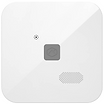
Alarm.com LTE Hub
See More
1. Locate the back of the device.
2. The IMEI is printed on the label.

DSC PowerSeries
See More
1. Open the panel and locate the cellular module.
2. The IMEI is printed on the module label (SN/IMEI).
Installer code: 5555
Master Code: 1234
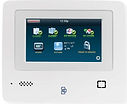
Interlogix Simon XTi-5
See More
1. Tap System Settings.
2. Scroll to Programming, then tap Enter.
3. Enter the installer code.
4. Tap Interactive Services.
5. Tap Module Status.
6. The IMEI will be listed as the serial number.
Installer code: 4321
Master Code: 1234

Qolsys IQ4/5 Hub
See More
1. Flick down to open the menu, then tap Settings.
2. Tap Advanced Settings.
3. Enter the installer code, dealer code or master code.
4. Tap About.
5. Tap Cellular.
Installer code: 1111
Dealer Code: 2222
Master Code: 1234
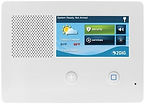
2GIG GC2 / GC2e
See More
1. Tap the GoControl logo in the top right corner.
2. Tap Radio Status.
3. The IMEI will be listed as the serial number.
Installer code: 1561
Master Code: 1111

Alarm.com Smart Gateway
See More
1. Locate the back of the device.
2. The IMEI is printed on the label.

Interlogix Simon XT
See More
1. Press and hold [1] for 10 seconds.
2. The IMEI will be displayed on the screen.
Installer code: 4321
Master Code: 1234

Qolsys IQ 2+
See More
1. Flick down to open the menu, then tap Settings.
2. Tap Advanced Settings.
3. Enter the installer code, dealer code or master code.
4. Tap About.
5. Tap Cellular.
Installer code: 1111
Dealer Code: 2222
Master Code: 1234

2GIG GC3 / GC3e
See More
1. Tap System Settings.
2. Enter the installer code or master code.
3. Tap Cell Radio Swap.
4. Tap Radio Test.
5. The IMEI will be listed as the serial number.
Installer code: 1561
Master Code: 1111

DSC Neo
See More
1. Press and hold [1] for 10 seconds.
2. The IMEI will be displayed on the screen.
Installer code: 5555
Master Code: 1234
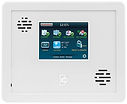
Interlogix Simon XTi
See More
1. Tap System Settings.
2. Scroll to Programming, then tap Enter.
3. Enter the installer code.
4. Tap Interactive Services.
5. Tap Module Status.
6. The IMEI will be listed as the serial number.
Installer code: 4321
Master Code: 1234

Qolsys IQ Panel 4/5
See More
1. Flick down to open the menu, then tap Settings.
2. Tap Advanced Settings.
3. Enter the installer code, dealer code or master code.
4. Tap About.
5. Tap Cellular.
Installer code: 1111
Dealer Code: 2222
Master Code: 1234